Why PowerPoint runs badly when shared on Zoom or Teams
You’re presenting. Animations stutter. The video on slide 4 plays at 5 frames per second. Someone in chat asks if you’re frozen. None of this happens when you rehearse the deck on your own.
Screen-sharing creates problems that don’t exist locally. Three specific ones, and they’re all fixable.
Problem 1: You’re sharing the wrong thing
The biggest single fix. There are three ways to share a PowerPoint deck in Zoom or Teams, and they’re not equally good.
Share the whole desktop. Worst option. Encodes everything on screen including UI chrome, taskbar, notifications. Highest CPU and bandwidth load. Animations get downsampled to fit the share stream’s frame rate.
Share the PowerPoint window. Better. Only the window pixels go through the encoder. Cleaner share, less CPU.
Share the slideshow directly (Zoom: Share PowerPoint as Virtual Background; Teams: PowerPoint Live). Best for most people. The slides are sent to attendees as native rendered slides, not video frames. Attendees see crisp text, smooth animations, and even if your connection has a hiccup the slides still arrive intact. The downside: attendees can sometimes navigate ahead of you. Both apps have a setting to lock attendee navigation.
If you can’t use the third option (you need to switch between PowerPoint and another app), use the second. Avoid the first.
Problem 2: Two graphics accelerators fighting
Both PowerPoint and your share app (Zoom/Teams) use hardware graphics acceleration. On many machines they fight for the same GPU resources, which produces stutter.
The fix: turn off hardware acceleration in one of them. Try Zoom/Teams first since you’ll use those for non-PowerPoint shares too.
Zoom: Settings → Video → Advanced → uncheck Use hardware acceleration for video processing. (Also try toggling Use hardware acceleration for sending video and Use hardware acceleration for receiving video.)
Teams: Settings → General → tick Disable GPU hardware acceleration. (The setting is named with a double negative – ticking it disables acceleration. Restart Teams after.)
If turning Zoom/Teams acceleration off makes things worse, try the opposite – disable PowerPoint’s acceleration instead: File → Options → Advanced → Display → tick Disable hardware graphics acceleration.
Problem 3: Embedded video is being encoded twice
When you share PowerPoint with embedded video, your share app encodes the video frames again on the way to attendees. So a 1080p video in your deck gets re-encoded to whatever Zoom/Teams sends, often at lower quality and with added stutter.
Fixes, in order of effectiveness:
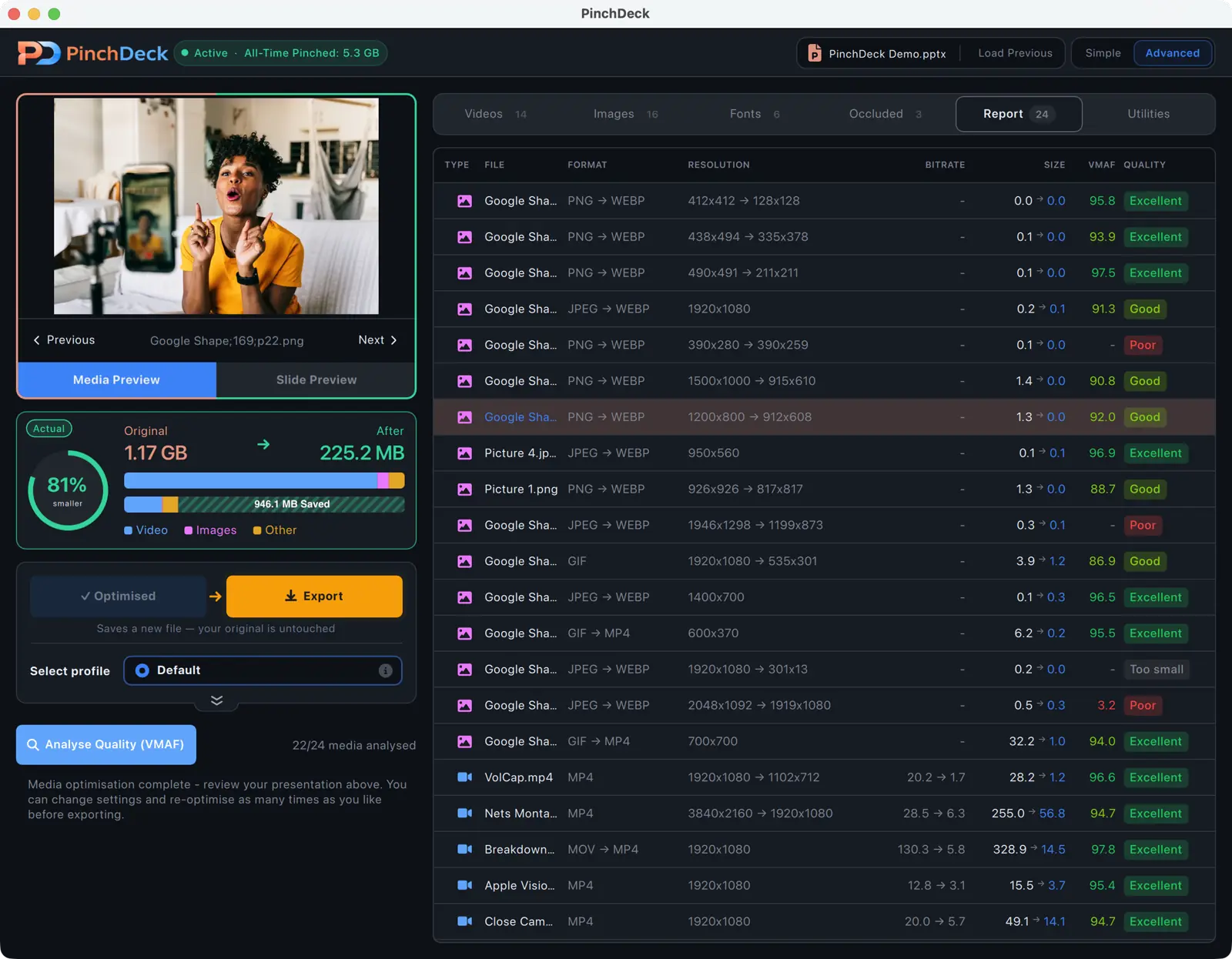
Compress the embedded videos before the meeting. Lower bitrate means less work for the second encoder. The fastest route is PinchDeck – it re-encodes every video in the deck with per-video bitrate control and a side-by-side preview, on Mac and Windows, in one click. PowerPoint’s built-in Compress Media works too if you’re on Windows and don’t need preview or per-video control – but its single-preset approach often over-compresses the videos that matter most.
Enable “Optimize for video” in the share dialog. Both Zoom and Teams have this. Adds latency but prioritizes smooth motion.
Use PowerPoint Live (Teams) or Zoom’s PowerPoint share mode. When PowerPoint sends slides natively rather than as video frames, embedded videos play attendee-side from the original file – no double-encoding.
Other things that help
Close everything else. Browser tabs, Slack, Spotify – all consume GPU and network. For an important presentation, close everything except PowerPoint and the meeting app.
Wired internet, not wifi. If possible. Wifi adds jitter that makes video stutter worse.
Plug in your laptop. Many laptops throttle the GPU on battery. Plugged in, you get the machine’s full performance.
Disable virtual backgrounds and filters. They consume the GPU you need for the share.
Use Presenter View only if you have two monitors. On one monitor, Presenter View runs the show twice (the speaker view and the audience view) and shares both, doubling the load.
What to do if it’s still bad
If you’ve done all the above and PowerPoint still stutters in the share, the deck itself is probably the issue. Three deck-side things specifically tank screen-share performance:
- Heavy animations: by-letter or by-word text animations are the worst. Switch to fade-in for whole text blocks.
- Many transparent or gradient overlays: rendering these every frame is expensive. Flatten them where you can.
- High-resolution background images: scale them down to 1920x1080 if the deck is presentation-only.
A deck that runs smoothly locally but stutters on share is almost always one of these three – or oversized embedded video that the share encoder can’t keep up with.
Compress before you present
Re-encoding a deck’s videos before a meeting is the highest-leverage thing you can do for share-quality. PinchDeck does it in one click on Mac and Windows, with per-video bitrate, a side-by-side preview, and a measured VMAF score so you can see fidelity rather than guess at it.
Free for 10 exports per device, no account.
FAQ
Why does the same deck run fine on my computer but lag for viewers? The lag is in the encoding-and-transmission step, not the rendering. Your screen sees full quality; viewers see whatever made it through the encoder and connection. The fixes are at the share level, not the deck level (though deck-level optimization helps).
Is Zoom or Teams better for PowerPoint? Teams’ PowerPoint Live is the smoothest for slide-only content. Zoom’s PowerPoint-as-Virtual-Background is comparable but more limited. For decks with frequent app-switching, both perform similarly when sharing the PowerPoint window directly.
Do I really need a third-party tool to compress before sharing? For decks with embedded video, yes – it’s the single biggest improvement to share quality, and PowerPoint’s built-in Compress Media doesn’t preview the result before it overwrites your videos. PinchDeck shows you the per-video bitrate and a side-by-side preview before saving. Free for 10 exports per device on Mac and Windows.
Should I record the deck as a video and play that instead? For one-way presentations (no Q&A on specific slides), yes – it’s the most reliable way to ensure smooth playback. File → Export → Create a Video. Share the video instead of the deck.
Why does my Zoom presentation get worse as the call goes on? Usually a memory or thermal issue – your machine is throttling under sustained load. Reboot before important presentations and plug in if you’re on a laptop.