Why is your PowerPoint running slow?
You type a sentence. The letters appear three seconds later. You scroll between slides and one of them takes a beat to render. It happened gradually, but now editing this deck feels like wading through treacle.
Five things cause almost every case of this. Here they are, ranked roughly by how often they’re the actual culprit.
1. The file is too big
This is the most common cause by a wide margin. PowerPoint’s responsiveness scales badly with file size. Once a deck gets into the hundreds of megabytes, scrolling and typing slow down noticeably and animations start to stutter.
The fix isn’t to delete slides – it’s to compress what’s eating the file. The diagnosis is in Why is my PowerPoint file so big? and the recipe in How to reduce PowerPoint file size.
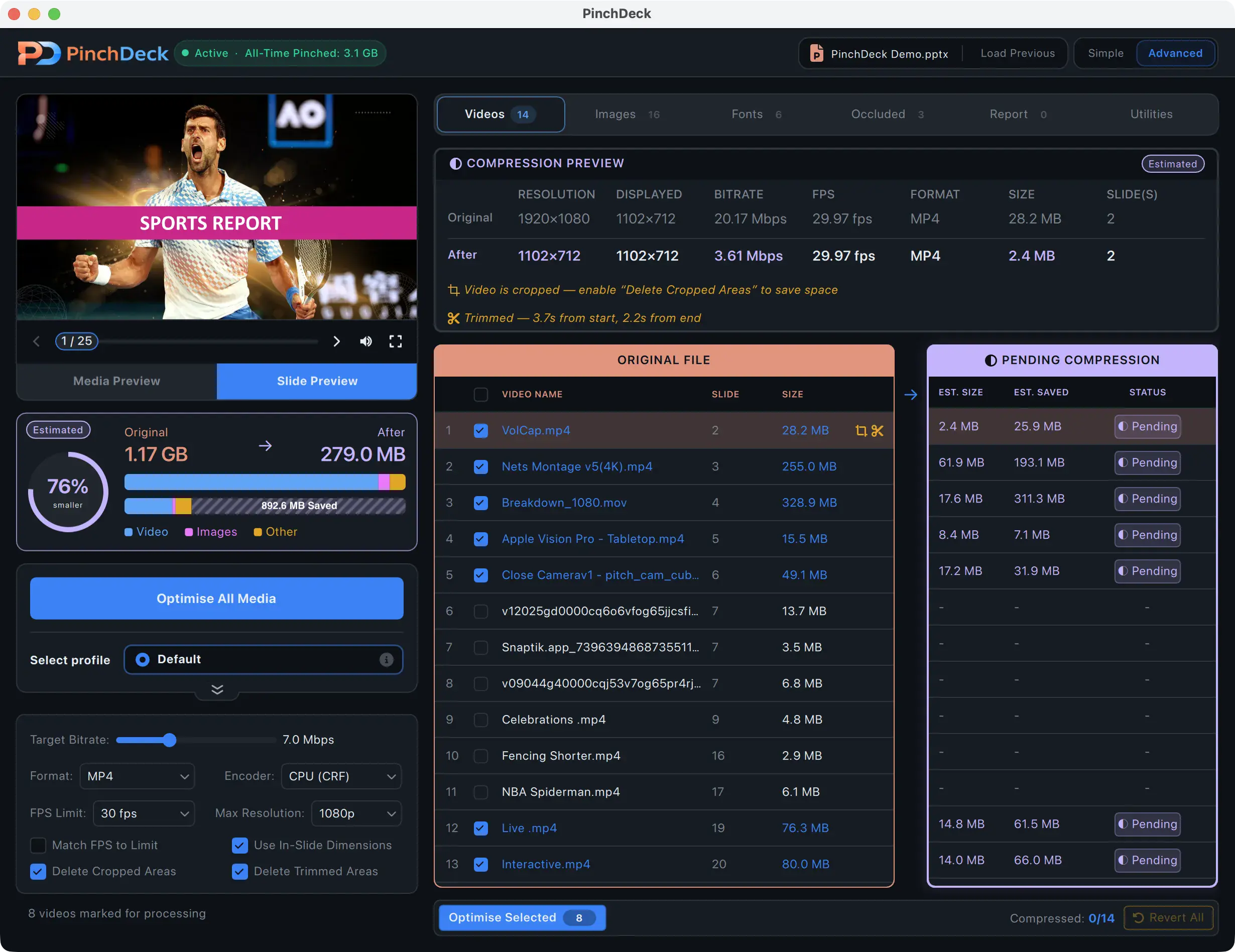
The shortcut: drop the deck into PinchDeck. It compresses every video, image, and font in one click, finds hidden assets PowerPoint can’t see, and shows you the result before saving. Free for 10 exports per device on Mac and Windows, no account.
2. Hardware graphics acceleration is off
PowerPoint can offload graphics work to your GPU. When that’s disabled, your CPU does it all – slower, especially with animations and transitions.
Check: File → Options → Advanced → scroll to Display → make sure Disable hardware graphics acceleration is unchecked.
If it’s already unchecked and you’re still slow, try toggling it. Some older GPU drivers play badly with PowerPoint’s acceleration; flipping the setting can resolve it both ways depending on the machine.
3. Add-ins are dragging it down
Every COM add-in loads when PowerPoint starts. Most are silent. A few are slow. One badly-behaved add-in can add seconds to startup and lag to editing.
Check: File → Options → Add-Ins → at the bottom, Manage → COM Add-ins → Go.
Uncheck everything you don’t actively use. Restart PowerPoint. If editing is suddenly snappy, re-enable add-ins one at a time until you find the slow one.
4. OneDrive autosave is fighting your edits
If your deck is on OneDrive with autosave on, PowerPoint syncs to the cloud every few seconds while you work. On a large file or a slow connection, that constant sync can lag the editor noticeably.
Check: top-left of the PowerPoint window – the AutoSave toggle.
Turn it off temporarily while editing. Save manually with Ctrl/Cmd-S. Turn AutoSave back on when you’re done if you want it.
A different fix: move the file off OneDrive entirely while editing, then move it back when finished.
5. Your TEMP folder is full
Windows PowerPoint writes a lot of temp files while editing. If your %TEMP% folder hasn’t been cleared in months, PowerPoint can spend real time hunting through it.
Clear it: Win+R → type %temp% → enter → select all → delete (skip anything that won’t delete – it’s in use).
This is a quick win on Windows machines that haven’t been swept in a while. Doesn’t apply on Mac.
A diagnostic order
Try these in this order – each is faster to test than the next:
- Toggle hardware acceleration
- Disable AutoSave for this session
- Clear TEMP folder (Windows only)
- Disable add-ins one at a time
- Compress the file
If you’ve worked through all five and PowerPoint is still slow, the deck itself is probably the issue – heavy animations, hundreds of complex shapes, or too many embedded fonts can grind even a clean install.
Things that don’t help (despite what other guides say)
Reinstalling PowerPoint. Almost never the fix. The deck or the add-ins are usually the problem, not the install.
Switching to 64-bit Office. Helps when you’re hitting the 2 GB memory limit on 32-bit Office. Doesn’t help with normal lag.
More RAM. Useful when you’re hitting genuine memory pressure. Won’t fix add-in or autosave lag.
Buying a faster PC. Same problem follows you to the new machine.
If it turns out to be the file
Most of the time it is. PinchDeck shrinks decks in one click on Mac and Windows, with the per-asset previews PowerPoint doesn’t have, and removes the hidden bloat the manual recipe can’t reach. Free for 10 exports per device, no account.
FAQ
Why does PowerPoint get slower the longer I edit? PowerPoint has a known memory pattern where editing sessions accumulate temp data and undo history. Closing and reopening the file usually resets it. If it happens within minutes of opening, the file is the problem, not the session.
Why is the same file fast on my colleague’s machine and slow on mine? Almost always either an add-in difference, a hardware acceleration setting, or a temp folder difference. Less commonly, a graphics driver issue.
Will a smaller file always be faster? Yes, with one exception: a deck where individual slides have hundreds of complex vector shapes isn’t fixed by image compression because the lag is from rendering complexity, not file weight. Rare in practice.
Do I really need a third-party tool to compress the file? For lag specifically, you mainly need the file smaller – any compression that gets it there will help. PinchDeck is the fastest route on Mac and Windows because it does the whole file in one click and finds the hidden bloat that the manual recipe leaves behind. Free for 10 exports per device, no account.
Does PowerPoint run slower in Microsoft 365 than in standalone Office? Marginally, due to background sync and telemetry. Usually not noticeable unless one of the other five causes is also in play.