How to compress PowerPoint without losing quality
You compressed your deck. The hero video now looks like it’s behind a screen door. The headshots have gone blocky. The file is barely smaller.
This is what happens when a tool decides quality settings for you and gives you no way to check before saving. The fix isn’t to compress less. It’s to compress per-asset and verify the result before you commit.
The one-click route
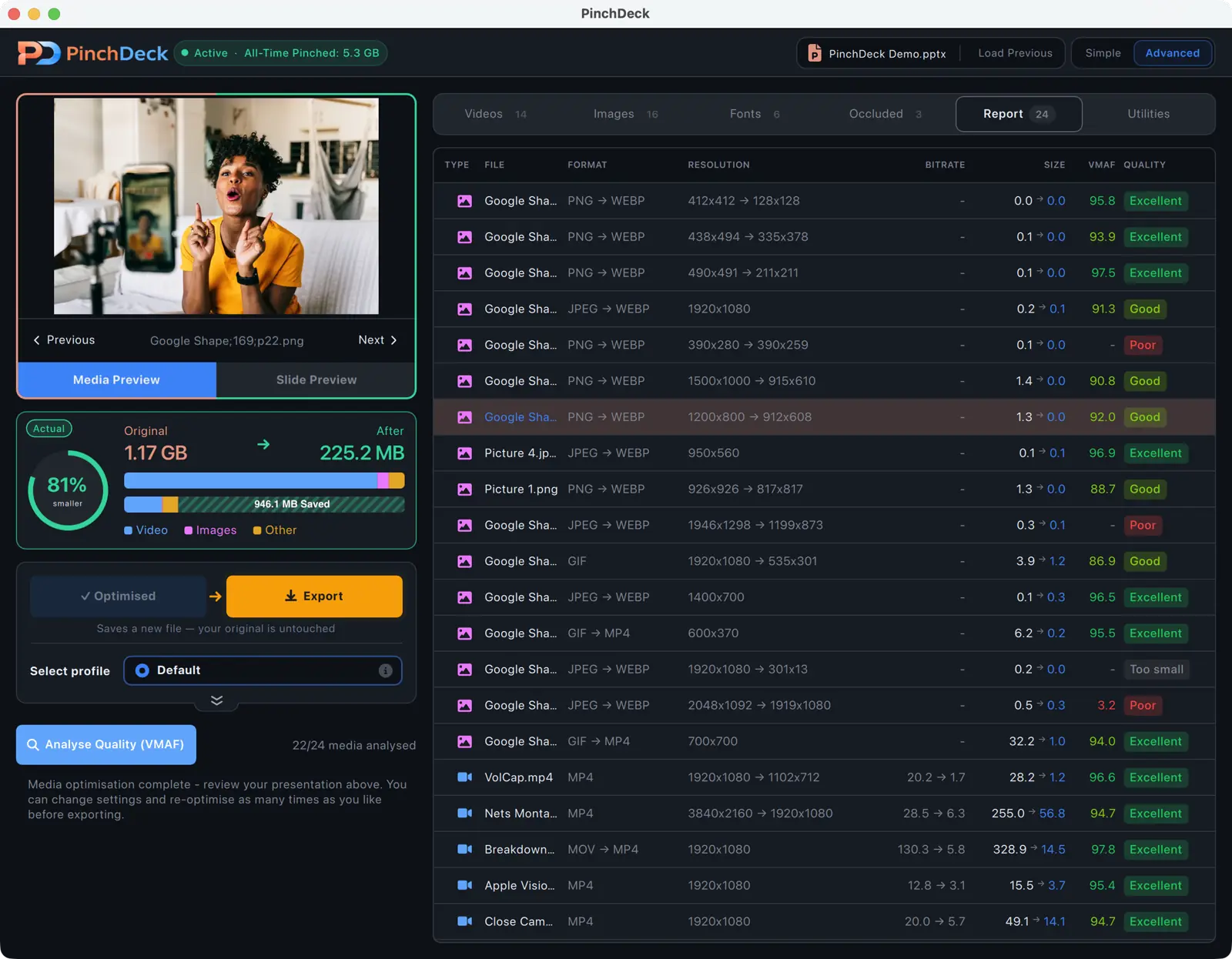
PinchDeck compresses every video, image, and font in the deck with the controls and preview PowerPoint doesn’t have:
- Per-video bitrate, resolution, and codec choice – not one preset for everything
- Side-by-side slider showing the original next to the compressed result, for every changed asset
- A measured VMAF score for every video so you can see fidelity, not guess at it
- Save only when you’re happy. Roll back any single asset if the result isn’t right
Free for 10 exports per device, no account, no upload. Same on Mac and Windows.
What “without losing quality” actually means
There’s no free lunch. Compression always trades file size for some quality. The only question is whether the loss is visible.
For almost every deck, you can shrink the file dramatically before the difference becomes noticeable on a typical screen. The default settings on most tools – PowerPoint’s Compress Media included – sit somewhere past that line. Sometimes well past it.
Settings that almost never show
For images:
- Resolution: 150 ppi for screen, 220 ppi for print
- JPEG quality: 80–85%
- Format: WebP if the deck will only be opened in modern PowerPoint (smaller than JPEG with no visible difference)
For screenshots with text, push higher (220+ ppi, 95% quality). Text is unforgiving of compression artifacts.
For videos:
| Source | Re-encode to | Visible difference |
|---|---|---|
| 4K phone clip | 1080p H.264, 5 Mbps | None on a 1080p screen |
| 1080p screencap | 1080p H.264, 3 Mbps | None for slide-content video |
| Stock footage | Same codec, lower bitrate | Depends on source |
For fonts:
Remove embedded fonts the deck no longer uses. Identical visually – the saving comes from cutting dead weight, not from changing what gets rendered.
PowerPoint applies a single preset to everything. To do this per-asset manually you’d have to extract each video, re-encode it in a separate tool, replace it in the deck, repeat for every video, and hope the audio stays in sync. For images you’d have to compress each one externally and re-insert.
PinchDeck does the per-asset version automatically and lets you change any single setting without redoing the others.
How to verify before saving
This is the part most tools skip. Three things you want before committing anything:
- The original frame next to the compressed frame, in the same place
- The ability to zoom in (artifacts hide in detail)
- A measurable score, not just a vibe
PinchDeck includes a side-by-side comparison slider for every changed asset. For video it also runs VMAF – the visual fidelity metric Netflix developed and open-sourced – and gives you a number.
A VMAF score above 93 means most viewers can’t tell the difference at normal viewing distance. Above 95 means a direct side-by-side can’t either. The number lets you compress as aggressively as your eye can stand without going past it.
PowerPoint’s Compress Media has none of this. You pick a preset, click Compress, and live with whatever comes out. If it looks wrong, your only undo is to re-import the originals from a backup – assuming you kept one.
A practical workflow
- Drop the deck into PinchDeck.
- Compress images at 150 ppi, 85% JPEG quality.
- For each video, lower the bitrate until you can just see a difference. Back off one notch.
- Verify with the side-by-side slider and the VMAF score.
- Save the optimized version under a new name.
A few minutes for a normal deck. Save as a new file the first time so you can compare it against the original directly.
When to accept some quality loss anyway
The point isn’t to never lose quality. The point is to choose deliberately:
- Email-only deck: A 25 MB file that emails in seconds beats a 200 MB pristine file that fails to send. Visual fidelity matters less than the file actually arriving.
- Internal preview deck: Save the high-quality version for the actual presentation. Send a smaller version for review.
- Conference handout: Portability matters more than perfect quality.
The right tool lets you make that trade-off explicitly. The wrong tool makes it for you.
Stop guessing
If you’ve been compressing decks blind and hoping for the best, the upgrade isn’t a different preset – it’s a tool that shows you the result before saving and lets you adjust per-asset. PowerPoint doesn’t. PinchDeck does.
Free for 10 exports per device on Mac and Windows.
FAQ
Is there really such a thing as truly lossless PowerPoint compression? Strictly lossless saves only a few percent. The dramatic reductions come from visually-lossless compression – settings where the loss exists but your eyes can’t see it. The trick is verifying you stayed on the right side of that line, which you can’t do without a preview.
Do I really need a third-party tool for this? You can use PowerPoint’s Compress Media if you’re on Windows and don’t mind a fixed preset with no preview, no per-video control, and no way to verify the result before it overwrites your originals. PinchDeck gives you all three on Mac and Windows. Free for 10 exports per device, no account.
Why do two tools at “85% quality” produce different results? Different encoders use different chroma subsampling, color spaces, and DCT settings. The quality number is a hint, not a standard. The only reliable check is your eyes on a side-by-side, with a measured score where the tool offers one.
Will my videos still play correctly after compression? If the tool re-encodes to H.264, yes – on every modern device. Avoid HEVC/H.265 if your audience uses older Windows machines without the codec installed.
What’s wrong with PowerPoint’s built-in Compress Media? It’s a fixed preset that re-encodes everything in the deck the same way, with no preview, no per-video control, and no Mac version. It works as a panic button when you don’t care about the result. It’s not the right tool when quality matters.