Why is my PowerPoint file so big?

A blank PowerPoint is 30 KB. Yours is 280 MB. Almost every time, the answer is one of four things: videos, cropped images, content you can’t see, or embedded fonts.
Two ways to fix it. Work through each cause manually – or let a tool do all four in one pass.
Quick answer: open a copy of the deck as a .zip and sort ppt/media by size. If the biggest files are videos or giant images, compress them. If the file is still bloated, look for hidden media, cropped originals, slide-master imagery, and embedded fonts.
The one-step fix
PinchDeck handles the usual causes in one pass:
- Re-encodes videos at the resolution and bitrate you choose
- Strips cropped image data and trimmed video segments
- Finds and removes occluded media, off-slide content, and unused slide-master imagery
- Removes embedded fonts the deck no longer uses
Everything runs on your computer. Nothing is uploaded. You see exactly what will change before saving, with a side-by-side comparison for every affected video and image.
Free for 10 exports per device, no account, no upload. Same on Mac and Windows.
Find what is making your PowerPoint huge →
Start with the videos
A 4K phone clip dropped onto a slide can add 50–200 MB on its own. PowerPoint stores it at full resolution and full frame rate, even when the slide displays it at thumbnail size. It never re-encodes anything you give it.
So if your deck has more than one or two videos, they’re most of the file. Confirm it: copy the deck, rename the copy from .pptx to .zip, open it, and sort the ppt/media folder by size. The biggest files in there are your problem.
The manual fix: File → Info → Compress Media → pick a quality. This is destructive – PowerPoint replaces the originals – so work from a copy if you might want them back. There’s also no preview, no per-video control, and no Compress Media on Mac.
PinchDeck re-encodes video on Mac and Windows with per-video bitrate and a side-by-side preview before saving.
Cropped images carry their originals
When you crop a photo inside PowerPoint, the cropped pixels stay in the file. The crop is a mask, not a cut. A tightly-framed slide image from a 24-megapixel original is still a 24-megapixel image in the deck.
The same goes for trimmed video. The part you cut off is still there.
The manual fix: File → Options → Advanced → scroll to Image Size and Quality → tick Discard editing data. Set the default resolution to 150 ppi while you’re there. Save the file.
Catch: this only applies to images you re-edit after turning the setting on. Old crops stay until you touch them.
PinchDeck strips cropped image data and trimmed video segments from the entire deck in one pass.
The images and videos you can’t see
Three kinds of asset hide in the file regardless of what’s visible on screen:
Occluded media. A colored shape over a photo or video doesn’t delete it – PowerPoint can’t tell whether you wanted it gone or just hidden, so it keeps the data. Same logic for stacked images: only the top one renders, but every layer is stored.
Off-slide content. Anything dragged beyond the slide canvas is still in the file. Common when designers park assets off-canvas between edits, or when you’ve inherited a slide with elements positioned elsewhere and never cleaned them up.
Images in the slide master. A background image on a slide master – or on a layout in that master – is stored once and inherited by every slide that uses it. One 12 MB hero background in an active master is 12 MB you can’t easily remove by deleting slides. Worse: importing slides from other templates often drags the original masters along too. Open View → Slide Master and you might find unused layouts carrying tens of megabytes of dormant background imagery.
The .pptx → .zip trick from earlier reveals these too. Any media file in ppt/media you don’t recognize is probably occluded, off-slide, or tied to an unused master.
PowerPoint has no built-in way to find and remove any of this. The full breakdown – with manual workarounds and where they fall short – is in The hidden content bloating your PowerPoint.
PinchDeck finds all three automatically and lets you remove them without touching a single visible slide.
Embedded fonts add up faster than you’d think
Embedded fonts make a deck look identical on every machine, but they pile up. Every time you copy a slide from another deck, paste from another presentation, or apply a theme, PowerPoint inherits the embedded fonts and keeps them – even after you stop using them. Each unused font is 1–4 MB.
PowerPoint has no built-in way to list and remove the fonts a deck no longer uses. The manual workaround is to untick Embed fonts under File → Options → Save, save the file, then re-tick and save again – at which point PowerPoint only re-embeds the fonts the deck currently uses. PowerPoint for Mac can’t embed fonts at all, so the toggle doesn’t exist there.
PinchDeck strips out unused embedded fonts directly – on Mac too – without the untick/save/retick dance.
When the manual fixes aren’t enough
The four fixes above are destructive. PowerPoint replaces media after compression, deletes cropped pixels on save, and gives no preview at any point. If you guess the wrong setting and don’t have a backup, the originals are gone.
PinchDeck shows you exactly which video, image, and font is contributing what – and what each will become after compression – before anything changes.
Here, the important thing is the per-asset breakdown: you can see whether the file size is coming from video, images, fonts, or hidden content instead of guessing from the slide thumbnails.
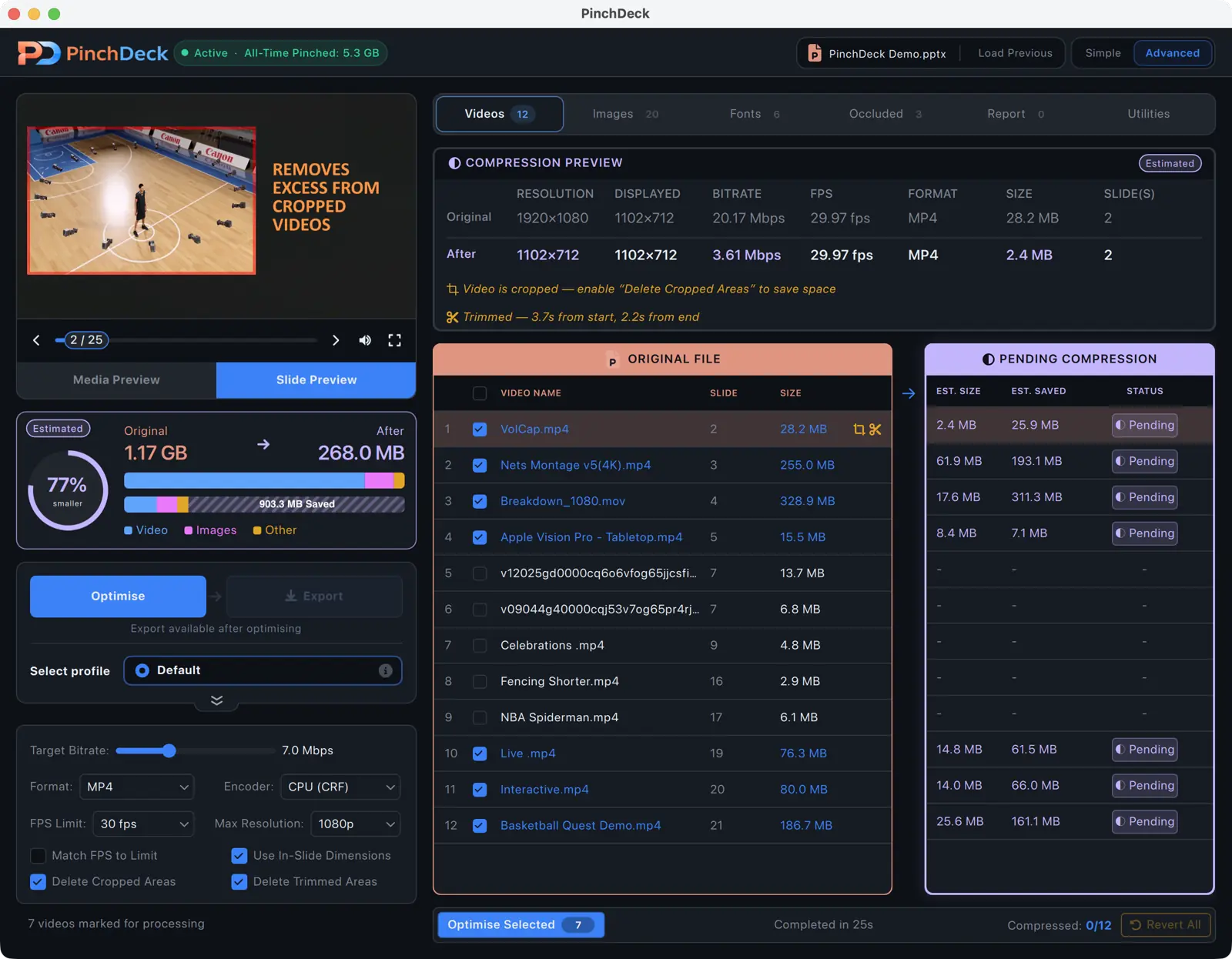
The free tier is 10 exports per device, no account – enough to know whether it shrinks your deck before you decide to buy.
FAQ
Is there a maximum size for a PowerPoint file? No hard limit, but performance degrades on most machines as decks get into the hundreds of megabytes, and most cloud services reject email attachments over 20–25 MB.
Do I really need a third-party tool for this? The four manual fixes work on Windows if you’re willing to accept that they’re destructive, leave hidden bloat behind, and don’t preview anything. PinchDeck does it all in one click on Mac and Windows, finds the bloat the manual recipe can’t reach, and shows you the result before saving.
Will compression change how my deck looks? At sensible settings, no. Image compression at 150 ppi is invisible at normal viewing. Video compression at moderate bitrates is indistinguishable on a typical screen. Aggressive settings show artifacts – the only way to know is to preview before saving.
Can I undo PowerPoint’s media compression? No. It replaces the originals. Always work from a copy of the deck if you might need them back.
Why did my file get bigger after editing? Two common reasons: you added new media that hasn’t been compressed, or PowerPoint kept the old versions of media you replaced. Save the file under a new name with “Save as” instead of “Save” to clear the second one.
Is PinchDeck really free? The free tier is genuinely free – no account, no credit card. You get 10 exports per device, which is enough to try it on a few real decks before deciding. Paid plans are $11.99/year or $39.99 lifetime if you decide to keep using it.