The hidden content bloating your PowerPoint
You cropped that headshot tightly six months ago. The deck still carries the original 24-megapixel photo. You hid that video behind a colored shape during edits. It’s still in the file at full size. The slides you marked “hidden” don’t show in the presentation, but every embedded video on them does.
PowerPoint stores everything you might want to undo, recover, or reveal later. For a small deck this is harmless. For a large deck it’s often where most of the file size lives, completely invisible from the slide editor.
The one-step cleanup
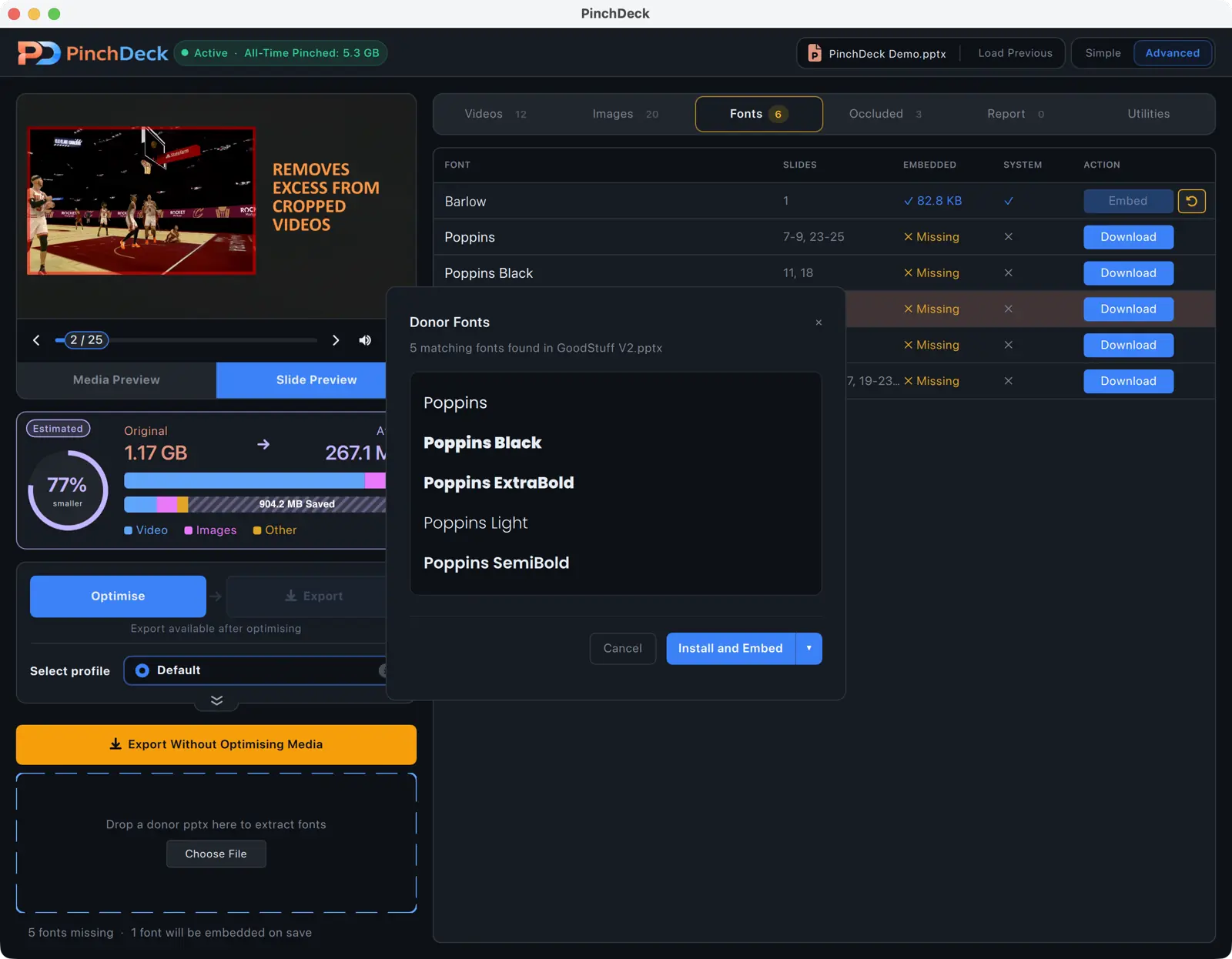
PinchDeck scans the whole file – every slide, every master, every off-canvas element – and shows you exactly what’s hiding inside:
- Cropped image data (the pixels still in the file after you tightened the frame)
- Trimmed video segments and video occluded by other shapes
- Off-slide content and elements parked beyond the canvas
- Slide masters and unused layouts carrying dormant background imagery
- Embedded fonts the deck no longer uses
You see every hidden asset with its size and decide what stays. The visible slides don’t change. Nothing leaves your computer.
Free for 10 exports per device, no account. Same on Mac and Windows.
What’s actually in there
Cropped image data. The pixels you cropped out are still in the file. The crop is a mask. The original image is intact, ready for you to drag the crop handles back out.
Trimmed video segments. Same principle. The part you cut off is still there.
Occluded media. If you covered a video with a colored shape to hide it, the video stays. PowerPoint doesn’t know whether you wanted to delete it or just hide it for now.
Off-slide content. Anything dragged off the slide canvas is still in the file. Designers do this on purpose; everyone else does it by accident.
Hidden slides. Marked-as-hidden doesn’t mean removed. The slide content – including any embedded video – is still there.
Old embeds. Excel charts, PDFs, and other objects you pasted in are stored at full size, even when they appear as small previews on the slide.
Unused embedded fonts. A deck inherits embedded fonts from any slide, theme, or master it was ever copied from – including ones nobody uses anymore. Each one is 1–4 MB of dead weight.
Slide master imagery. A background image on a slide master – or on a layout in that master – is stored once and inherited by every slide using it. Importing slides from other decks often drags the original masters along too. Open View → Slide Master and you might find unused layouts carrying tens of megabytes between them.
How to find it
The fastest manual check: copy the deck, rename the copy from .pptx to .zip, open it, and sort the ppt/media folder by size. Anything large that you don’t recognize is probably hidden, occluded, off-slide, or tied to a master you forgot you had.
PowerPoint’s Inspect Document (File → Info → Check for Issues) finds hidden slides, off-slide content, and embedded objects. It won’t find cropped data, occluded media, or master imagery, and it doesn’t tell you per-asset sizes. Useful for surfacing privacy issues separately – cropped photos can include faces or screenshots you didn’t mean to share.
Neither method tells you what each asset contributes to the file size, and neither gives you a one-click removal. You’re left to guess what to delete and hope you didn’t break anything visible.
PinchDeck finds everything in one scan, lists each item with its size, and lets you remove any of it with a click. Visible slides don’t change.
What removing hidden content actually changes
Nothing visible. By definition, hidden content isn’t on screen.
You do lose the ability to undo some destructive cleanup – mainly the ability to drag crop handles back out and the ability to reveal videos that were hidden behind shapes. If those matter, save a copy of the deck first.
You gain a smaller file with every visible pixel unchanged.
When this matters most
- You crop images inside PowerPoint instead of in an image editor first
- You build decks by copying slides from other decks (carrying their hidden content with them)
- You hide content with shapes during edits and forget about it
- You embed fonts and the deck has been edited or themed multiple times
- You inherit decks from other people whose hygiene you can’t verify
For decks built fresh from scratch with deliberate asset choices, hidden content is usually a smaller share of the file. For decks that have been edited, copied, and combined for months, it’s often most of the file.
Get the cleanup PowerPoint won’t do
Inspect Document and the .pptx → .zip trick will tell you something is wrong. They won’t tell you how much, and they won’t help you fix it. PinchDeck does both, in one scan, with the visible slides untouched.
Free for 10 exports per device on Mac and Windows. No account.
FAQ
Will I lose the ability to un-crop my images? Yes. Removing cropped image data is destructive. Save a copy of the original deck first if this matters.
Will removing hidden content change how the deck looks? No. By definition, hidden content isn’t on screen. Removing it changes file size, not appearance.
Do I really need a third-party tool for this? PowerPoint’s built-in tools can flag some hidden content but they can’t measure it, can’t see all of it, and can’t remove most of it without a manual workaround per asset. PinchDeck finds everything in one scan and removes any of it with a click. Free for 10 exports per device on Mac and Windows, no account.
Why doesn’t PowerPoint do this automatically? “Discard editing data” in File → Options → Advanced does some of it on save, but it’s off by default and only handles cropped image data on images you re-edit. Microsoft assumes automatic destructive cleanup is risky.
Could hidden content be a privacy risk? Sometimes. Cropped images still contain the parts you cropped out – which can be a colleague’s face, a confidential screenshot, or sensitive metadata. Run Inspect Document before sharing decks publicly, and remove the cropped data with PinchDeck if any of those crops were sensitive.