Why PowerPoint changes your fonts when you copy slides between decks
You copy a slide from last quarter’s deck into a new one. Everything reverts to Calibri. The headline you spent twenty minutes setting in your brand font is now in Arial. The label sizes are wrong. Your carefully aligned bullets are misaligned because the substituted font has different character widths.
This is one of PowerPoint’s most-complained-about behaviors. Three things cause it. Each has a specific fix.
The recovery path: borrow the font
If you’ve just opened a deck and the fonts are wrong, you don’t always need to install anything to get them back. If another deck on your system uses the same font and was created on a machine that had it installed, that font is already embedded inside the other deck.
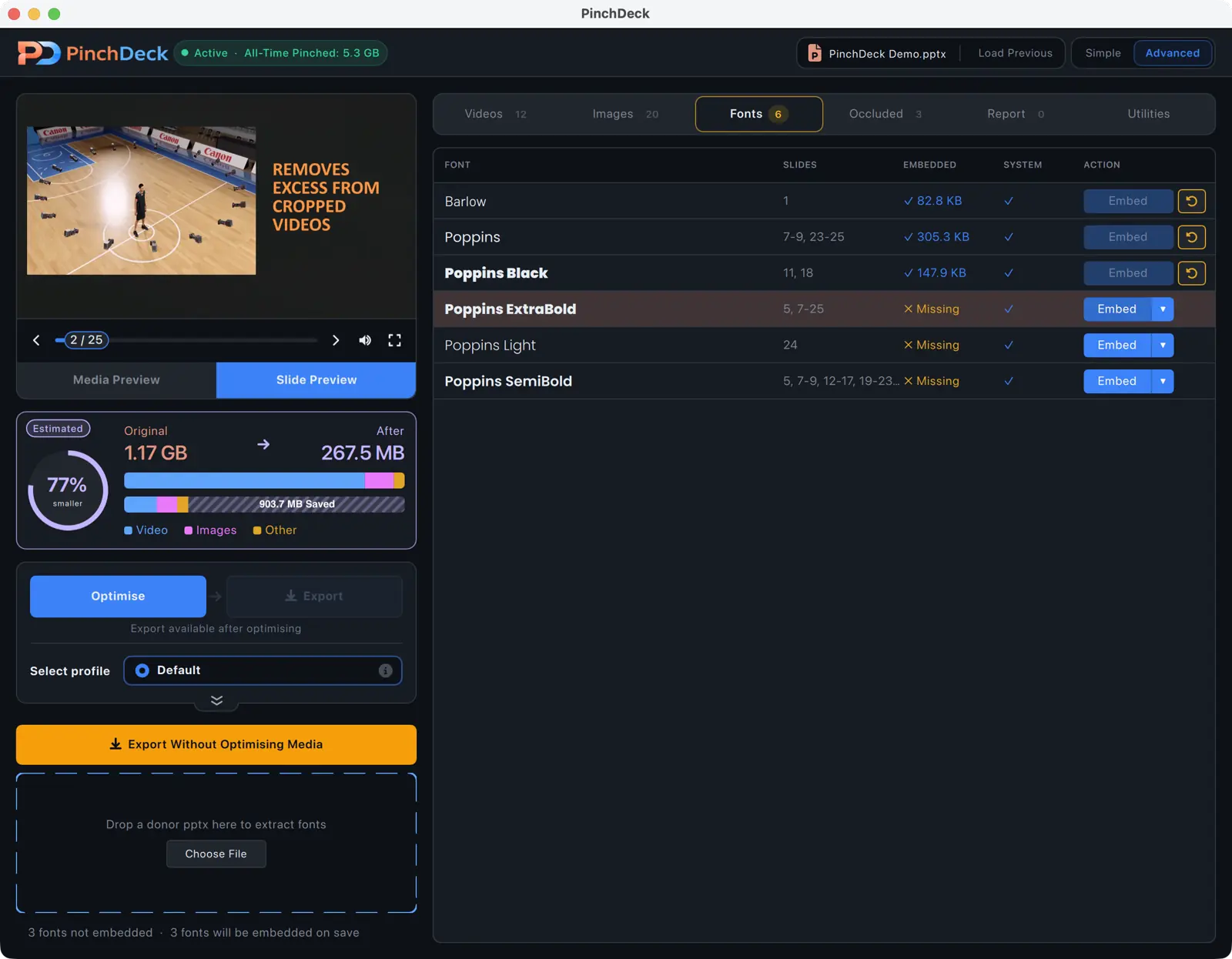
PinchDeck extracts embedded fonts from one .pptx file and embeds them into another – no system install, no admin rights, no waiting for IT. Drop the donor deck and the broken deck in, pick the fonts to borrow, save. The broken deck now renders correctly without changing anything system-wide.
Free for 10 exports per device on Mac and Windows, no account.
Cause 1: The destination deck has different theme fonts
PowerPoint slides reference fonts in two ways: as explicit fonts (“set this text in Helvetica Neue”) or as theme fonts (“set this text in the heading font”). If your slide uses theme fonts and you paste it into a deck with different theme fonts, the text takes on the new theme’s fonts automatically. PowerPoint considers this correct behavior.
The fix during paste: when you paste, click the small Paste Options smart tag that appears next to the pasted slide. Choose Keep Source Formatting. This forces the slide to keep its original theme references.
The fix beforehand: copy the source slide master into the destination deck before pasting slides. View → Slide Master → drag the relevant master from source to destination → close Master view → then paste slides. They’ll find the matching master and behave correctly.
Cause 2: The font isn’t installed on this machine
If the source deck used a font your computer doesn’t have – common when you receive a deck from someone else, or when you’ve moved between machines – PowerPoint silently substitutes another font. There’s no warning. The text just looks wrong.
PowerPoint’s substitution algorithm picks something close (sans-serif → Arial, serif → Times New Roman, display → Calibri) but the character widths differ, so spacing and alignment break.
Three ways to fix it:
Install the font. Best fix if you have access to it and admin rights on your machine. Right-click the font file → Install → restart PowerPoint.
Borrow the font from another deck. Often the fastest route, especially when you don’t have the font file or can’t install software. PinchDeck extracts embedded fonts from one .pptx and embeds them into another. No install, no admin rights. Same on Mac and Windows.
Use Replace Fonts to swap it for one you do have. Format → Replace Fonts → pick the missing one → choose a substitute. Works in a pinch but you’ll lose the original look. Limitation: it doesn’t fix fonts inside charts, SmartArt, or grouped objects.
Cause 3: Fonts were embedded but not on a Mac
If you’re moving decks between Windows and Mac, embedded fonts don’t always travel. Specifically:
- PowerPoint for Mac can’t embed fonts. The option doesn’t exist. You can open and use embedded fonts from a Windows-saved file, but you can’t add new embedding on the Mac side.
- Some Mac fonts can’t be embedded by Windows. Confirmed by Microsoft.
- PowerPoint Online ignores embedded fonts entirely. If your recipient opens the file in a browser, they’ll see substitutions.
The reliable workaround for cross-platform decks: convert the text to outlines (vector shapes) so it’s no longer text but a drawing of the text. Looks identical, can’t be edited as text, but renders the same on every machine. Right-click selected text → Save as Picture → re-insert.
How to spot a substitution before you present
PowerPoint won’t tell you a font has been substituted. To check manually:
- Open the deck on the destination machine
- File → Info → look for any font warnings
- Check the Font dropdown – substituted fonts often appear in italic or with a strike-through indicator
Better: open the file in two places (the source and the destination) and compare side by side. Anything that looks different is probably a font substitution.
Prevention for next time
If you regularly copy slides between decks:
Standardize on theme fonts across your team’s decks. If everyone’s decks use “Heading: Arial / Body: Arial” as theme fonts, copy-paste works without surprises.
Embed fonts in source decks if you’ll send them to others. File → Options → Save → tick Embed fonts in the file and leave Embed all characters selected. The character-subset option saves a few megabytes but kills the recipient’s ability to edit the text – any character they type that wasn’t already in the deck loses the font. The full-embed option is the right choice for shared decks.
Build a master deck with all your standard fonts and copy slide masters from it rather than copying individual slides between random decks.
What to do when the fonts are already gone
If you’ve already saved over the original and the fonts are now substituted everywhere:
- If you have the original deck: copy slides back from the original using Keep Source Formatting after fixing the theme.
- If you have the font file: install the font, reopen the file – PowerPoint will use it automatically.
- If you have another deck that used the same font: borrow it from that deck with PinchDeck. Often the fastest recovery when you don’t have the font file or don’t have admin rights to install one.
- If you don’t have any of the above: Replace Fonts in Format menu lets you bulk-swap fonts to alternatives, but you’ll lose the original look. Pick a similar font from DaFont, Google Fonts, or Adobe Fonts.
Borrow fonts in seconds, not hours
If you’ve ever fixed a deck’s fonts by chasing down the font file, asking IT to install it, and waiting a week – PinchDeck’s font borrowing is the shortcut. Drag in a deck that has the font, drag in the deck that needs it, save. Done. No install, no admin, no waiting.
Free for 10 exports per device on Mac and Windows, no account.
FAQ
Why does Keep Source Formatting still change my fonts sometimes? Two reasons: the font isn’t installed on the destination machine (formatting is preserved but the font itself is missing, so PowerPoint substitutes), or the slide uses theme fonts that conflict with the destination’s master. Bringing the source slide master across first is the more robust fix.
Do I really need a third-party tool to fix fonts? For most cases, no – installing the font or using Keep Source Formatting handles it. The two cases where PinchDeck earns its keep: when you don’t have the font file but have another deck that uses the font (PinchDeck borrows it across), and when you can’t install fonts on your machine because of admin restrictions. Free for 10 exports per device on Mac and Windows, no account.
Are embedded fonts safe to share with anyone? Mostly yes, but font licenses vary. Some fonts are flagged “Editable” (full embedding), some “Print & Preview” (recipients can view but not edit), and some can’t be embedded at all. PowerPoint respects these flags silently.
Why is the embedded fonts option grayed out? Most often: you’re on PowerPoint for Mac (no font embedding). On Windows, it can also be grayed out if the deck uses only fonts that can’t be embedded.
How do I find which fonts a deck uses? Format → Replace Fonts shows the list of fonts referenced in the deck. Anything in italic or marked unusual in that list is a font your machine doesn’t have installed.
Will Google Fonts in PowerPoint work for everyone? PowerPoint can fetch some Google Fonts on the fly when the document is opened (cloud fonts). Works on PowerPoint Microsoft 365 with internet. Doesn’t work offline, on older Office, or on PowerPoint Online for some fonts. For reliable cross-platform display, install the font on every machine that will open the deck or convert text to outlines.