How to compress video in PowerPoint (Mac and Windows)
You have a 1.4 GB deck. Three slides have video. You ran PowerPoint’s Compress Media. Two of the videos now look like they’ve been Photoshopped through a sock. The third is fine but it ate the embedded subtitle track.
Compressing video in PowerPoint sounds simple but the built-in tools have specific gaps. Here’s what they do, where they fall short, and what to use instead.
The one-tool route
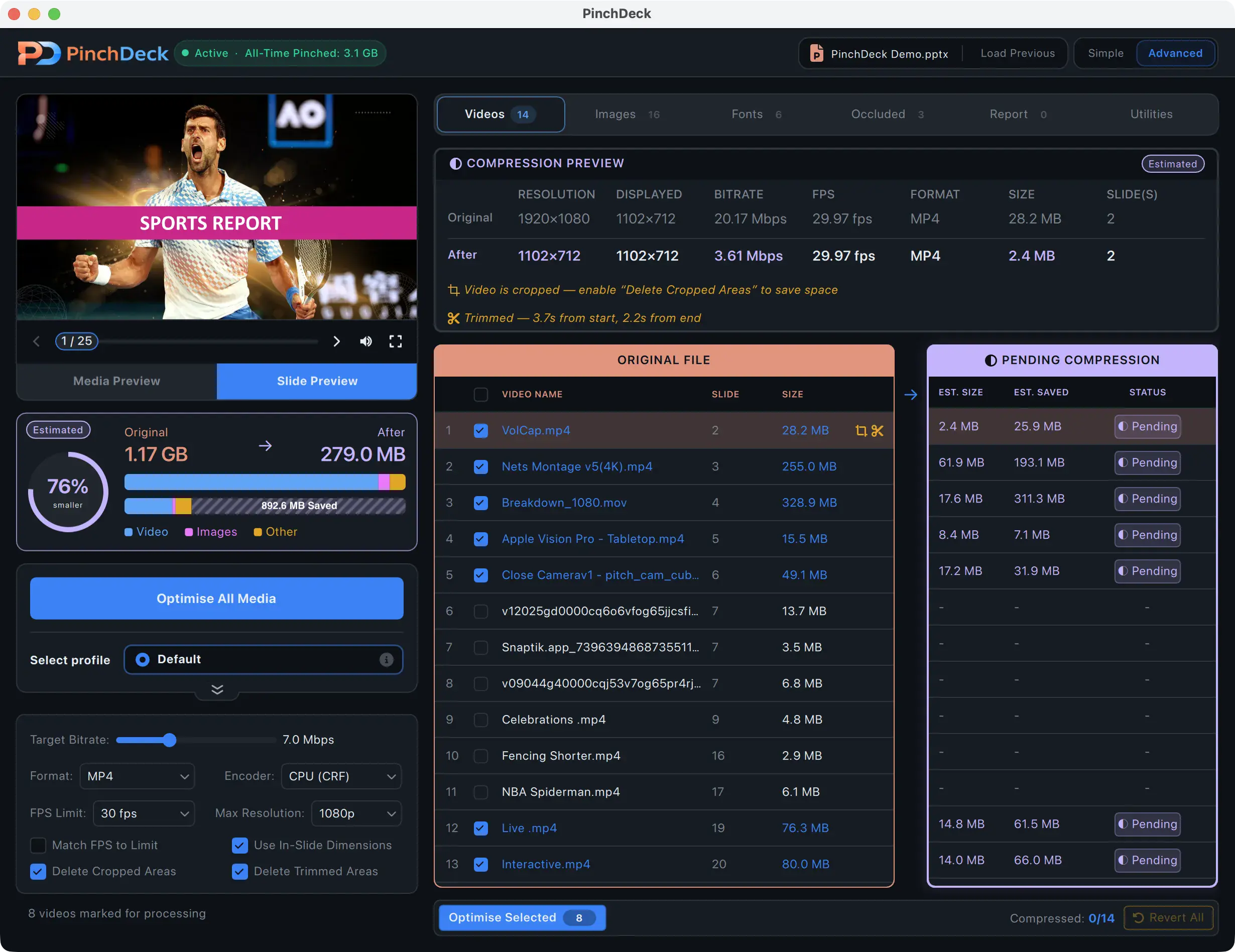
PinchDeck compresses every video in the deck with the controls and preview PowerPoint doesn’t have:
- Per-video bitrate, resolution, and codec choice – not one preset for everything
- Side-by-side slider showing the original next to the compressed result
- A measured VMAF score for every video so you can see fidelity, not guess at it
- Audio tracks and subtitles preserved – nothing silently stripped
- Trimmed segments and video occluded by other shapes removed before re-encoding the visible ones
- Same controls on Mac and Windows – PowerPoint’s Compress Media is Windows-only
Free for 10 exports per device, no account, no upload.
What PowerPoint’s built-in compression does
On Windows: File → Info → Compress Media → choose Full HD (1080p), HD (720p), or Standard (480p). PowerPoint re-encodes every embedded video at the chosen resolution.
There’s no preview, no per-video control, and the operation is destructive – the originals are replaced after save.
Where it falls short
A handful of issues come up often enough to be worth knowing about before you commit.
It’s Windows-only. PowerPoint for Mac has no Compress Media feature. Mac users have to extract videos, compress them in another tool, and re-insert them.
It’s destructive with no preview. PowerPoint replaces the originals after compression. There’s no side-by-side, no “what will this look like” check, and no real undo unless you catch the problem in the same session.
One setting for every video. Full HD applies to a 4K hero video and a small screencast equally. There’s no way to compress one heavily and leave another at full quality.
Embedded subtitles and alternate audio are stripped. If your videos have caption tracks or multi-language audio, PowerPoint removes them during compression. Confirmed by Microsoft in the Compress Media documentation.
Trimmed segments are kept by default. If you trimmed a video inside PowerPoint, the trimmed parts stay in the file. Compress Media discards them as a side effect, but only after you’ve already applied compression you might not want.
It only works on embedded video. Linked or online videos (YouTube and similar) can’t be compressed because they’re not in the file in the first place.
The Mac problem
PowerPoint for Mac has the same .pptx file format as Windows but no Compress Media UI. Microsoft Support’s official guidance is to use third-party tools.
The manual workflow:
- Find each embedded video in the deck (right-click → Save Media As)
- Save each one to your desktop
- Open each in HandBrake (free, Mac and Windows)
- Re-encode at H.264, 1080p, around 5 Mbps target bitrate
- Replace the originals in the deck (right-click → Change Picture/Video → Insert from File)
- Resize and reposition to match the original
This works. It’s also painful – a deck with several videos takes the better part of an hour of careful manual work, and you have to redo it any time you re-edit.
PinchDeck does the same thing in one click on Mac, with preview and per-video control.
What good video compression for PowerPoint should give you
If you’re going past the built-in tool’s limits often, look for these specific things:
- Per-video control. Different videos deserve different settings.
- Bitrate control, not just resolution presets. A 1080p video at 3 Mbps is half the size of a 1080p video at 6 Mbps with no visible quality difference for typical slide-content video.
- Side-by-side preview. See the result before saving.
- Preserved audio and subtitles. No silent stripping of tracks.
- Same on Mac and Windows. No Windows-only gap.
Most “PowerPoint compressor” tools – online or desktop – don’t actually re-encode video. They compress images and let videos pass through untouched. The few that do touch video usually wrap PowerPoint’s own Compress Media (Windows-only) or apply a fixed preset with no preview.
PinchDeck does it differently. It re-encodes embedded video on both platforms with per-video bitrate, resolution, and format control, plus a side-by-side preview and a measured VMAF score before saving. It also strips out trimmed segments and video occluded by other shapes – data PowerPoint quietly keeps in the file even when nobody can see it.
Settings that almost always work
For embedded video in a PowerPoint deck:
| Source video | Re-encode to | Visible difference |
|---|---|---|
| 4K phone clip | H.264, 1080p, 5 Mbps | None on a 1080p screen |
| 1080p screencap | H.264, 1080p, 3 Mbps | None for slide-content video |
| Stock footage (already compressed) | Same codec, lower bitrate | Depends on source |
Avoid HEVC/H.265 unless you know your audience has the codec installed. Older Windows machines can’t play HEVC out of the box and will fail silently in presentation mode.
Compress every video properly
If you’ve used Compress Media and watched it gut a video that mattered, the answer is a tool that shows you the result before saving and lets you adjust per-video. PinchDeck does both, on Mac and Windows, and keeps the audio and subtitle tracks PowerPoint silently strips.
Free for 10 exports per device, no account.
FAQ
Why does Compress Media make my video look terrible? The Standard (480p) and HD (720p) presets are aggressive. Try Full HD (1080p) first. If even that looks bad, the issue is probably your source – PowerPoint can’t add detail that isn’t there, and re-compressing already-compressed video compounds the loss. The fix is to re-encode from the original source with control over the bitrate.
Do I really need a third-party tool to compress video in PowerPoint? If you’re on Windows and don’t mind a fixed preset with no preview, no per-video control, and silent loss of subtitle and alternate-audio tracks, Compress Media works. PinchDeck addresses every one of those gaps and works on Mac too. Free for 10 exports per device, no account.
Can I undo Compress Media? Only if you haven’t saved the file. Once saved, the originals are replaced. Always work from a copy if you might need them back.
Why isn’t the Compress Media option showing up? Three common reasons: you’re on Mac (no built-in support), your videos are linked rather than embedded, or your videos are online (YouTube and similar). Compress Media only works on embedded video files.
What video format does PowerPoint prefer? H.264 in an MP4 container. Plays reliably on every modern Windows and Mac. Avoid HEVC/H.265 for portability, AVI for size reasons, MOV for compatibility (it usually works but not always).
Will compressing video affect the audio? PowerPoint’s Compress Media re-encodes audio too, usually to AAC. Quality is usually fine. The catch: alternate audio tracks and embedded subtitles are stripped without warning.
Why is my video out of sync after compression? Usually a frame-rate mismatch. If your source is variable-frame-rate (common from phone cameras), PowerPoint can re-encode it as constant-frame-rate and the audio drifts. Convert the source to CFR with HandBrake before inserting it, or use a tool that detects VFR and handles it correctly.
Does compressing video help with PowerPoint lag? Yes. Embedded video is the single biggest cause of editor lag in large decks. Compressed video also plays back more reliably, especially when shared on Zoom or Teams.