PowerPoint file too big to email? Here's what to do
Your file is 47 MB. Gmail’s limit is 25 MB. The email bounced. You need to send this in the next ten minutes.
You have three real options. Pick by how much time you have and what kind of attachment your recipient needs.
Option 1: Shrink the deck (best if you can)
The recipient gets a real attachment, opens it offline, and never knows the original was huge. The catch is that you have to actually compress it.
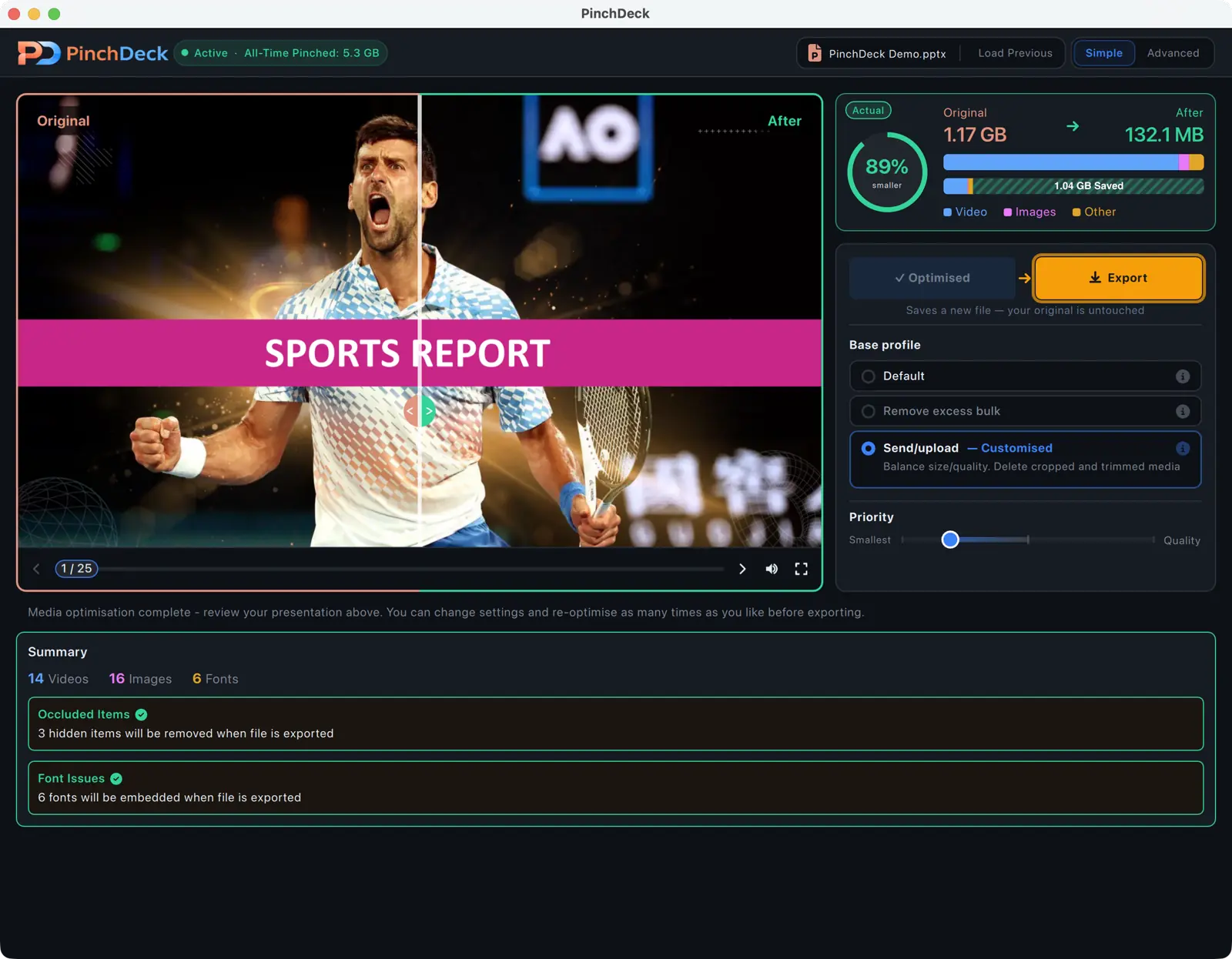
Fastest: Drop the deck into PinchDeck. One click compresses every video, image, and font in the file and shows you the result before saving. Most decks that bounced an email get small enough to send through. Free for 10 exports per device, no account, on Mac and Windows.
Manual (Windows only): File → Options → Advanced → tick Discard editing data, set Default resolution: 150 ppi. Then File → Info → Compress Media → pick a quality. Save under a new name. Slower than the one-click route, destructive, no preview, doesn’t catch hidden assets. Walk-through in How to reduce PowerPoint file size.
Option 2: Let Gmail or Outlook send a link automatically
If you’re using Gmail or Outlook web, attach the file as normal. When it’s over the limit, both will offer to upload to Drive or OneDrive automatically and send a link instead.
The recipient sees a link instead of an attachment. They click, the file opens in their browser, they download from there. Zero quality loss. Same time as a normal send.
The downsides are real: the recipient needs internet to open, the link can be revoked if you delete the source file later, some corporate spam filters flag third-party links, and a recipient who wanted the deck on their device has to do an extra step. Use this if your file is too big and you don’t have time to compress, or if you don’t have a tool to compress it with.
Option 3: WeTransfer or a file-share link
For genuinely huge files, or recipients on email systems that strip large attachments outright:
| Service | Free limit | Link expires | Account needed |
|---|---|---|---|
| WeTransfer | 2 GB per transfer | 7 days | No |
| Smash | Unlimited | 14 days | No |
| Google Drive (link) | 15 GB total | None | No (with link sharing on) |
Same trade-offs as Option 2 plus an extra step for both sides. Mostly used when Option 2 isn’t available.
Which to use
- You have a minute and a tool that can compress: Option 1.
- You don’t have a tool, you’re on Gmail or Outlook web, and a link is acceptable: Option 2.
- The file is huge or the recipient’s email system blocks Option 2: Option 3.
What not to do
Don’t convert to PDF unless the deck is text and images only. PDF kills video, animation, and the ability to edit.
Don’t split the deck into multiple emails unless the recipient has explicitly asked for it. It’s awkward to receive and easy to lose track of.
Don’t use random temporary upload services for business sends. Free anonymous services come and go, get blocked by corporate filters, and the link often expires before the recipient opens it.
Email attachment limits, for reference
| Provider | Limit | Auto-uploads to |
|---|---|---|
| Gmail | 25 MB | Google Drive |
| Outlook (web/365) | 33 MB | OneDrive |
| Outlook (corporate Exchange) | Set by IT (often 10–20 MB) | – |
| iCloud Mail | 20 MB | Mail Drop |
| Yahoo Mail | 25 MB | – |
Note that the limit is the encoded size, not the file size on disk. Base64 encoding adds roughly 33% – a 22 MB file becomes about 29 MB once encoded for transit, which is over Gmail’s limit. The safe rule of thumb is to keep the file under 75% of the stated cap.
Send a real attachment next time
If you regularly send decks that brush up against the email limit, the answer isn’t a different upload service – it’s a smaller file. PinchDeck shrinks decks to fractions of their original size with no visible quality loss, on Mac and Windows, in one click.
Free for 10 exports per device, no account.
FAQ
What’s the actual safe size for a Gmail attachment? About 19 MB on disk. Gmail’s 25 MB limit applies to the encoded (base64) size, which is roughly 33% larger than the file itself. Anything much over 19 MB risks tripping the limit even if the file size on disk reads under 25.
Do I really need a third-party tool to compress a PowerPoint for email? If you’re on Windows and prepared to dig through PowerPoint’s menus, the manual route works for many decks. PinchDeck does it in one click on Mac and Windows, finds the hidden bloat the manual route misses, and shows you the result before saving. Free for 10 exports per device, no account.
Will compressing destroy the original? Only if you save over it. Always save a compressed copy under a different name if you might need the original at full quality later.
What about Microsoft Teams? Teams attachments work like OneDrive – the file is uploaded to the channel’s SharePoint backing and a link is shared. The 250 GB limit is essentially unlimited for any deck.
Can I just compress the file as a .zip and send that?
PowerPoint files (.pptx) are already zipped containers. Re-zipping them saves single-digit percent at most, not enough to clear an email limit. The bloat is inside the file, not in how it’s packaged.